#1 Send dropdown = set status
Always use the ▼ next to Send (bottom-right) → choose the status that matches what happens next.
Waiting on Customer → you need the member/customer to reply before you can progress.
Waiting on Vendor → you need the vendor/3rd party to reply before you can progress.
Pending → put the other-side ticket on hold to pause SLAs (doesn’t block replies).
Example: you’re actively emailing the member → set the vendor ticket to Pending.Closed → you’ve advised the member it’s resolved and the ticket is being closed.
![Gv From: Len Aylett (membershub@fyb.com.au) To: support.case@microfocus.com Cc Bcc Hi Support Ticket #41339 - 03245343-Content Manager CMServiceAPI result returning inconsistencies [ ref :! 00D1tOvhDP .! 500Q40TYE35:ref ] Please let us know if there is anything else you need from us. Click on the below link to check your ticket status from FYB Members Hub: View Ticket !!! Write with Al v A W R D Saved Send V 1 Send and set as Waiting on Customer 2 Send and set as Waiting on Vendor Send and set as Resolution Suggested 3 Send and set as Pending Send and set as Resolved 4 Send and set as Closed Send and set as Escalated to Lead MSO Send and set as Under Development](https://s3-ap-southeast-2.amazonaws.com/aus-cdn.freshdesk.com/data/helpdesk/attachments/production/51275206431/original/bvoPRgi026_ekYpUTwn4Gi8hBvak9LX9fQ.png?1768461689)
#2 Use Add note for internal handover:
Assume someone else may touch the ticket next.
Always add a note after completing work / making a decision / sending key comms
Note should cover (briefly):
What was done
Why (context/decision)
What’s next (next step + who’s waiting on who)
Keep it short (members can’t see notes as they are defaulted to Private)


#3 Set up your key Views (saved searches) as Favourites
These two Views are the main ones to use when scanning for tickets that aren’t directly assigned to you.
From the main screen, click the carnival ticket icon (Views).

At the top-left of the Views panel, click the dropdown that usually shows “All tickets”.
Go to Shared.
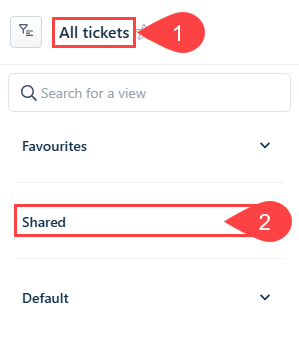
Find these two Views and click the ⭐ star on the right of each to add to Favourites:
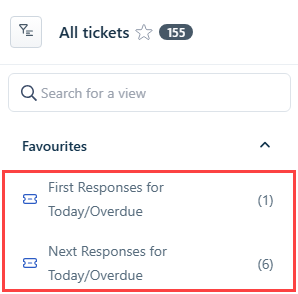
First Responses for Today/Overdue

Next Responses for Today/Overdue

Now they’ll appear under Favourites (above Shared) so you can jump to them fast from that same dropdown.
#4 Tracker tickets (Member ↔ Vendor)
Tracker = connector ticket between member and vendor (OpenText) tickets (can link multiple tickets).
Rule: every OpenText ticket must be linked to a Tracker that links back to the member ticket.
Find an existing Tracker + open linked tickets
On any ticket → right column Linked Tickets
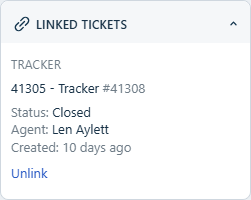
Click the Tracker link
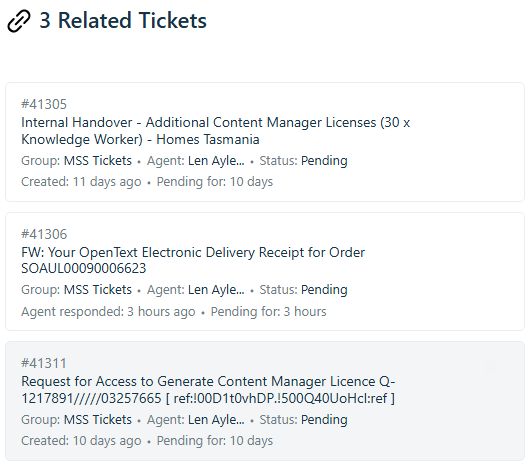
On the Tracker → Linked Tickets → click “X related tickets”
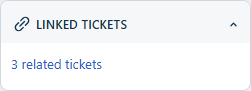
Open the ticket(s) you need
Create a Tracker (when you log the OpenText ticket)
Start on the member ticket → Linked Tickets → Create a tracker → set:
Subject: '<Member Ticket #> - Tracker'
Type: Other
Status: Closed
Customer Priority: Low
Group: The Trackers
Agent: Len Aylett
Ticket Class: Tracker
Description: Tracker
→ Create
Link the OpenText ticket to the Tracker
On the OpenText (vendor) ticket → Linked Tickets → Link to a tracker
Change dropdown Contact → ID
Search the Tracker #
Link it
#5 Member replies that don’t require FYB action (avoid SLA restart)
If a member replies with something like “thanks” / “ok” / no new action required, Freshdesk may auto-set the ticket to Open (SLA restarts).
Don’t just change status from the right-side dropdown (it won’t trigger the right automations).
Do this instead:
Click Add note
Type something (can’t be blank) — e.g. WOC
Use ▼ next to Send (bottom-right) → Waiting on Customer