Description
This advice sheet will assist users in understanding the requirements to expose the Content Manager (CM) Web Applications externally.
DISCLAIMER
Content Manager Web Applications
The following Web Applications are available:
- WebClient
- WebClient Mobile
- Service API
Web Client
The WebClient is a Web-based interface that allows access to CM via the Web with the following features:
- Zero install
- Latest HTML5 technology
- Auto-adjusts layout to suit device for an enhanced user experience
- Supports the following functionality:
- Dynamic search
- Saved searches
- Document viewing, editing, creation, seamless check-in and out
- Tag and task
- Browse business classification scheme
- Workflow
- Emailing links
- Advanced record requests
- Report generation
- Drag and drop documents from Windows Explorer onto Content Manager Web client to check-in
- Configurable results list size
- Pagination—navigate through multiple pages
Web Client Mobile
The WebClient mobile is essentially a trimmed down version of the Web Client for a mobile interface. It has limited features in comparison to the full Web Client.
Service API
The ServiceAPI is a RESTful web service. Its purpose is to expose the bulk of the Content Manager SDK in a way suitable for remote communication. The data format used is JSON, chosen both because it is compact and JavaScript friendly.
In addition to being a JSON web service, the ServiceAPI can also be rendered as an HTML web site, both for viewing and updating CM. The Object browser demonstrates Razor templates rendering the service output as HTML. The example forms (linked from the index page) demonstrate how an HTML form can be submitted directly to the service.
Authenticator to the Web Applications
Regardless of whether the Web Applications are accessed Internally or Externally, there are different authentication methods you may elect to use based on your requirements. By default, the Web Applications are enabled for Windows Authentication.
This means when accessing the Web Applications, you’ll be able to view records and perform actions based on your profile configured within CM.
- When accessing internally, the user’s Windows credentials are passed through automatically to the Web Client
- When accessing externally, the users may be required to enter in their Windows credentials to access to the Web Applications
- These are the same login details used to log into the computer every morning
Aside from Windows Authentication, the Web Applications support the following authentication methods:
- ADFS - provides a Single Sign-On (SSO) solution across multiple Network Domains
- ADFS requires SSL protection and requires additional configuration changes to the Web Applications to enable support
- Azure AD - Similar to ADFS, Azure AD provides an SSO solution that can be used across network domains
- Azure AD provides additional benefits of providing cloud-based authentication, allowing users to connect from outside of the network
- Azure AD requires outgoing access via ports 80 and 443, an Azure AD Web Application and additional configuration changes to the Web Applications
- Anonymous - enables access to all users, regardless of whether they have a login to the dataset or network.
All connections are authenticated using a preconfigured account, that can be restricted to only display Public Records. Caution should be taken to ensure non-public records are not available to the account as any actions performed through the Web Application are not easily auditable using this method.
Considerations for External Exposure
Before exposing the CM Web Application, you will need to understand the requirements of the Business in regards to what information is required to be exposed. For example: Are these records going to be available for all members of the public or is this only required for staff members working externally? (Windows Authentication vs Anonymous Access).
If the information is only going to be available for staff members to access the information externally then no other security mechanisms need to be considered.
If information is going to be available for members of the public, then other security mechanisms must be put into place within CM to ensure sensitive information is not accidentally released to the public.
Configuring the Web Applications for External Exposure
The following tasks will need to be undertaken for external exposure:
- Open up the relevant ports/firewalls on the Web Server
- Configuring SSL/TLS certificate
- Install the SSL/TLS certificate
- Enable HTTPS bindings on CM web applications or site
- Configure reverse proxy server
The CM Web Applications can be installed on any Web Server. SSL/TLS is supported for use with the applications.
Setting Up the Network
To make the CM Web Applications externally accessible an SSL/TLS certificate must be installed on Web Server where the CM Applications are installed to enable HTTPS authentication.
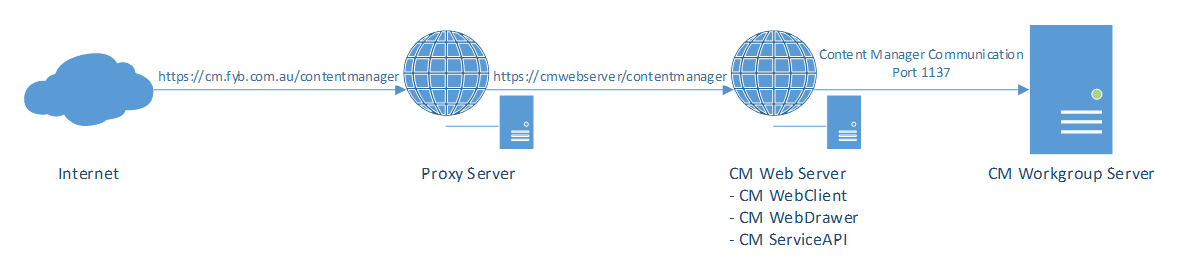
Depending on how external access is allowed to access the network a Reverse Proxy can be set up to send any requests to the CM Web Applications to the internal CM Web Server.
For example, navigating to https://cm.fyb.com.au/contentmanager externally can be sent to https://cmwebserver/contentmanager on the internal CM Web Server.
The following diagram demonstrates an example of how the CM Web Applications can be exposed externally using a reverse proxy.
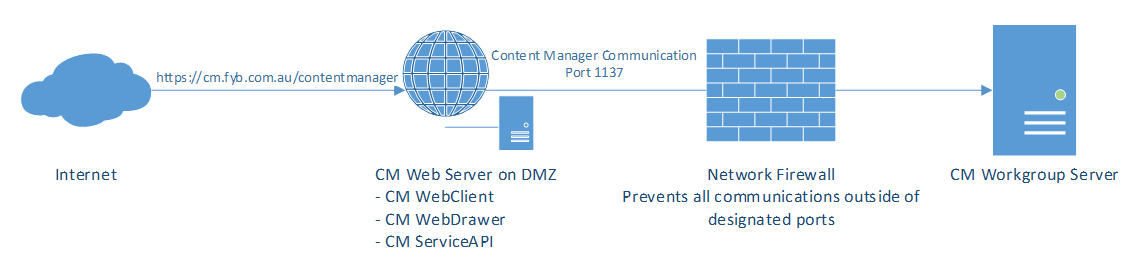
Alternatively, the Web Server can be configured isolated using a DMZ, however, this will require the following ports be open:
- Port 1137 - The default port for all communications between Content Manager Servers / Clients
- Port 445 - The default port for Active Directory Authentication, required for Windows Authentication, however, if using anonymous / ADFS / Azure AD authentication, the port is no longer required
The following diagram demonstrates an example of how the CM Web Applications can be exposed externally using a DMZ.