FYB may request a variety of logs while troubleshooting issues with Content Manager so that they can be reviewed to determine the cause of the issue. The following is a list of the logs that we request for issues relating to Content Manager:
Workgroup Server Logs
Workgroup Server logs relate to issues that can be traced back to an interaction with the Workgroup server. For example, Tracking a document registration to see if it made it into the Document Store.
These logs are located on your Primary Workgroup Server, which is the server that users connect to. To retrieve these logs, a Windows Administrator or FYB support team member access the Workgroup Server and navigate to a path, such as C:\Content Manager\ServerLocalData\TRIM\Log.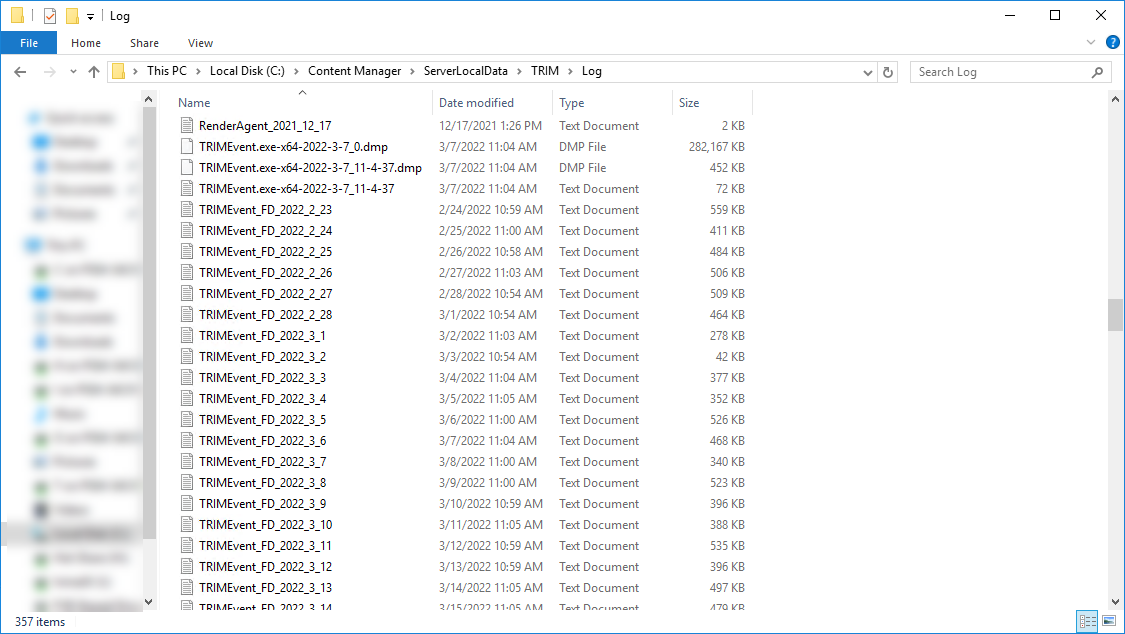
Your Workgroup Server logs may not be on the C Drive, depending on your current Content Manager stack configuration, although they are typically located on the primary workgroup server. Other drive examples are D: or E:
Advanced Logging
FYB may also request to enable advanced logging; this adds all transactions, interactions, warnings and errors to the Workgroup Server logs; however, this also dramatically increases the size of the log files captured and is turned off by default.
Enabling advanced logging is done in Content Manager Enterprise Studio, installed on your Workgroup Servers. However, this task will need to be completed by either a Windows Administrator or, more commonly, by FYB.
Audit Logs
Audit Logs capture each event a user completes within Content Manager. For example. each time they log in and out or a record of the documents they view. FYB often requests these logs to track changes in your Content Manager dataset or see if certain events were completed correctly.
By default, Content Manager administrators can configure which events are captured in the audit logs. FYB recommends that all events are captured within the Audit logs. If you want to confirm your audit options, log a ticket with FYB or ask your Content Manager administrator.
There are two types of audit logs:
- Active Audit Events - are stored in the Content Manager database and can be accessed via the client application.
- Offline Audit Events - are stored at a text file on the event processing workgroup server.
Active Audit Events
To access the active audit events:
- Click Find Records from the Search Ribbon
- Configure the search as follows:
- Search By = Active Audit Event
- Select search style for Active Audit Event = A selection of Active Audit Events
- Enter a valid search string for selecting Active Audit Events = click the KwikSelect button to define your search criteria
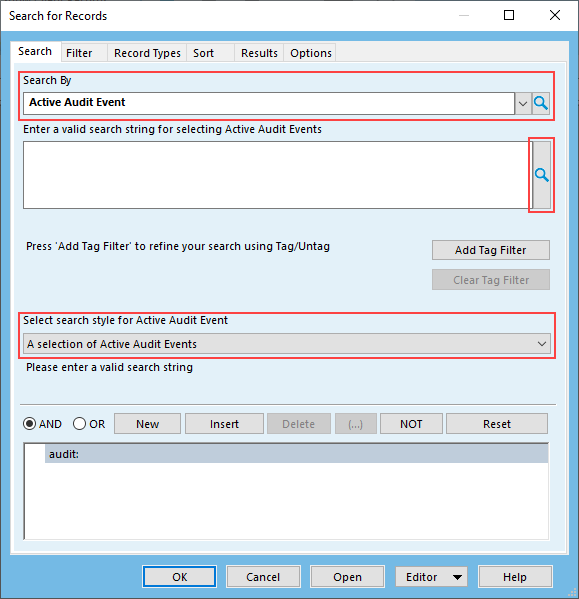
- Perform a Print Merge of the events for further analysis or data analysis.
Offline Audit Logs
From the Content Manager Client
To access the offline audit logs:
- Open the Content Manager Full Client.
- Click Audit from the Administration Tab.

- Note down the record number listed in the Container for offline audit log files field.
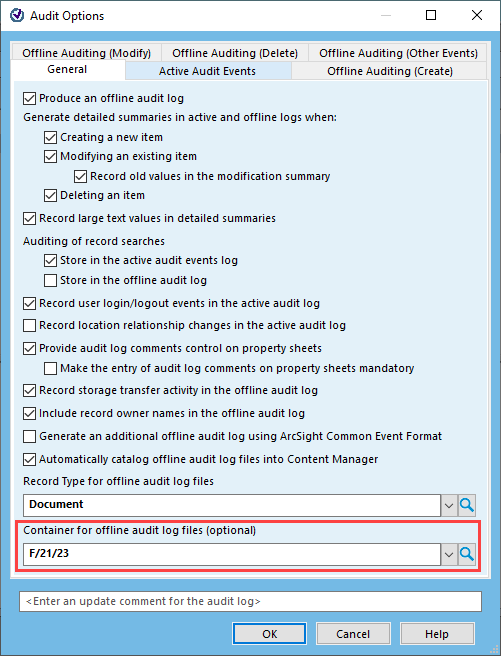
- Perform a record number search for the listed folder and open the relevant audit log to browse its content.
From the Content Manager Event Processing Server
If the audit log container is blank, the audit logs can only be found on your event processing server.
Ask your Windows Administrator or FYB to retrieve the relevant log file. You will typically find it in a location such as C:\Content Manager\ServerData\TRIM\[Dataset ID]\AuditLogs.
Like with the Workgroup Server logs, these may not be on your C: Drive and instead will be located where your Content Manager installation was completed for that server. For example, a D: or E: drive.
Office Integration Logs
Transaction Logging
The Office integration logs track information, events, warnings and errors that occur when you use the Content Manager Office integration from Word, Excel, PowerPoint, Project and Outlook.
The following example lists information logged from Microsoft Outlook. To retrieve an Office integration log:
- Click Open Log from the Content Manager ribbon of the Office application that is causing an issue.
[INSERT SCREENSHOT OF THE RIBBON AND CALL OUT THE OPEN LOG BUTTON] - Click Full Log to open the log into a Notepad file, and save it locally.
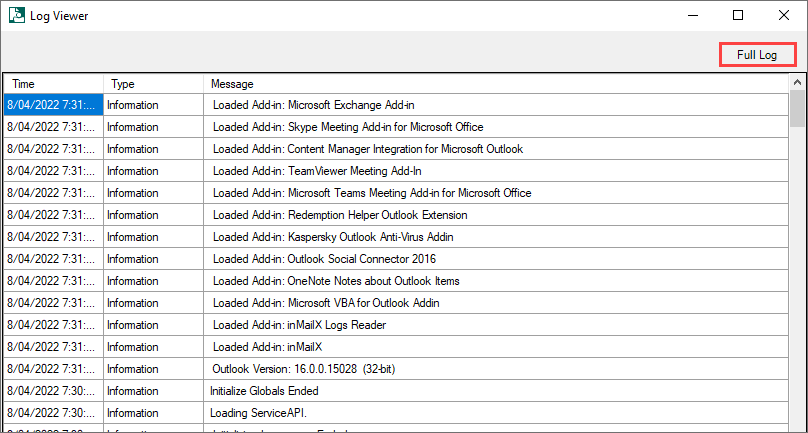
As with all logs but especially with Office integration logs, providing a Time Stamp of when the issue occurred will speed up how quickly we can identify the issue.
Diagnostic Logging
Diagnostic Logging is used to troubleshoot technical issues with the Content Manager Office Integration.
To enable diagnostic logging:
- Open the affected Office application.
- Click File > Content Manager Options to open the following window.
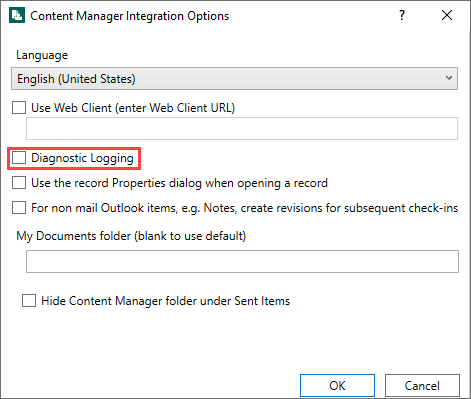
To retrieve a diagnostic log, navigate to C:\Users\[username]\AppData\Roaming\Micro Focus\Content Manager\OfficeIntegration\Logs in Windows File Explorer.
Event Viewer Logs
Event Viewer logs are used to track application information, warnings, errors relating to a specific machine. For example, errors can be retrieved from the Event Processing Workgroup Server to track issues with event processing. Or the logs could be requested from a users machine to see why their Content Manager client is crashing.
You can retrieve an event log by:
- Opening Event Viewer in Windows on the affected machine.
- Select Windows Logs > Application.
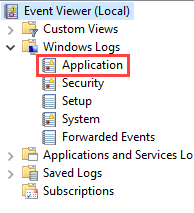
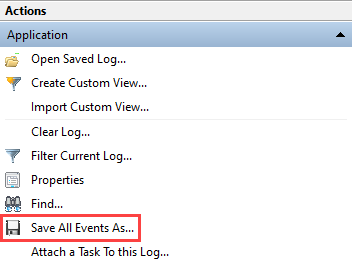
- Export the log files using the Save All Events As... option found on the right side of the window.
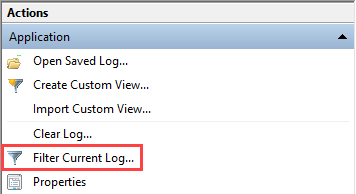
FYB may request to have the Applications filtered down to only TRIM Applications. This is done via the Filter Current Log option. However, this is more likely to be completed in a Remote Session with FYB so that we can filter for the specific TRIM Applications required.
HAR Logs
Issues with the Content Manager WebClient will often require reviewing the HAR files. These are used to collect the log files from Google Chrome. However, the steps are similar for other Web Browsers. These files can help FYB investigate what is happening within the Web Browser and how it is interacting with Content Manager.
Set up logging
- Open Google Chrome
- From Chrome, Click F12 or right-click > Inspect
- Select the Console tab in the Chrome Developer Tools Console (Bottom Window)
- Click the Clear button undefined to clear out any existing logs from the console.
Generate a HAR file
- Look for a round Record button undefined in the upper left corner of the Network tab, and make sure it is red. If it is grey, click it once to start recording.
- Check the box next to Preserve log
- Click the Clear button undefined to clear out any existing logs from the Network tab.
- Reproduce the issue
- When finished, right-click inside the table of network events, select Save as HAR with Content, and save the file to your computer
FYB offer training on Content Manager Technical Support and Troubleshooting.
Click here for more information