The Content Manager Service Account is responsible for running your Content Manager Services. It is also responsible for your Content Manager Web Client, ServiceAPI, and WebDrawer. This also includes web-based FYB Add-Ins.
We usually do not recommend changing the Content Manager Service Account's password, however, there are some scenarios where this needs to be done.
If your organisation is planning on changing the Service Account's password, there are some configurations that need to be updated once the change is made, otherwise, your Content Manager environment will not function.
Once your internal IT has updated the password, the new password must be configured in the following locations:
Services
Content Manager has a handful of Services required to function. These will all need to be updated with the new Content Manager Service Account Password. Please see the instructions below:
This will need to be performed on ALL Content Manager Workgroup Servers.
- Navigate to Services from the Start Menu:

- Locate all Services beginning with Content Manager:

- You will notice that the Content Manager Service Account can be seen under 'Log On As':

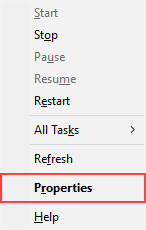
- Right-click on a Service and select Properties:
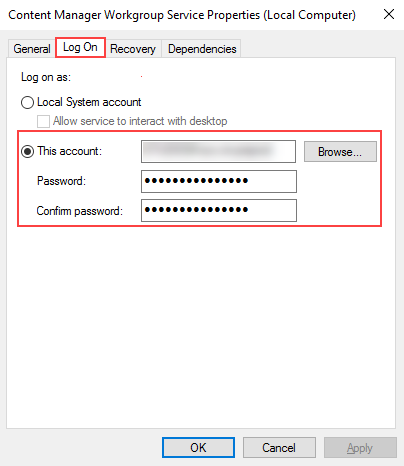
- Select the 'Log On' tab. You should see the fields where the Service Accounts Username and Password go:
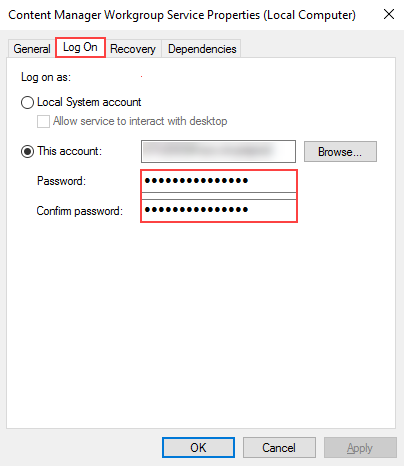
- Update the Password field:
- Repeat the above steps on all Content Manager related Services
For organisations on Content Manager 9.3 and below, the Services will begin with HPE Content Manager.
Internet Information Services (IIS)
Content Manager has Web Components that need the Service Account to run. Also, if there are any FYB Add-Ins configured in IIS, it is likely the Service Account will be used to run these too. These will all need to be updated with the new Content Manager Service Account Password. Please see the instructions below:
This will need to be performed on your Content Manager Web Server.
- Navigate to IIS from the Start Menu:

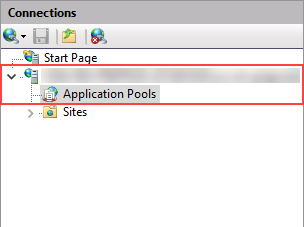
- Expand the Server and select Application Pools:
- You should be able to see which Applications use the Content Manager Service Account by observing the 'Identity' Column:
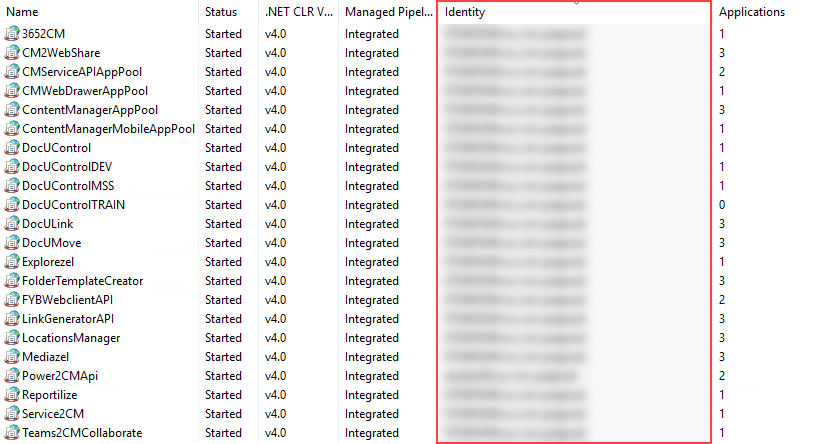
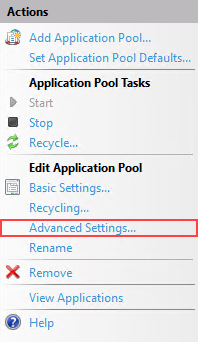
- Highlight an Application and select 'Advanced Settings' in the right-hand view pane:
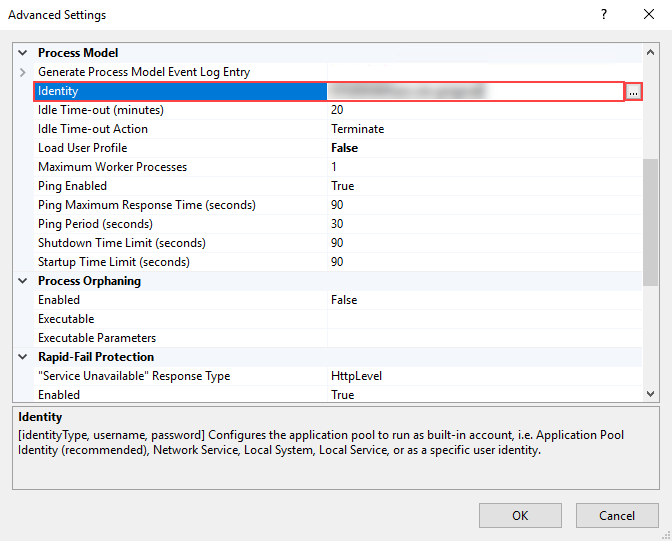
- Locate the 'Identity' field hightlight it. Select the button (...) to the right side of the field:
- Select the 'Set' button in the 'Application Pool Identity' window:
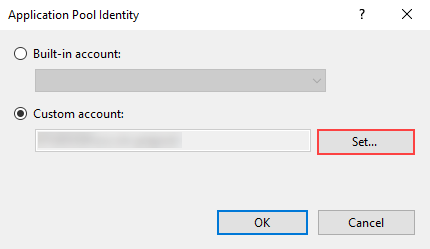
- Set the credentials of the Content Manager Service Account then click OK to accept the change:
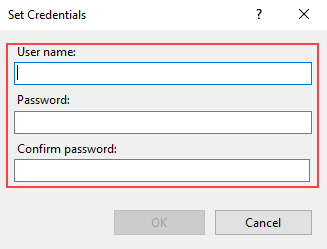
- Repeat these steps for all Web Applications with the 'Identity' set to the Content Manager Service Account
We would recommend completing these changes in your Non-Production Environment before implementing the changes into your Production Envrionment.

We also recommend completing this outside of business hours to minimise impact to users logged into Content Manager.
FYB offer training on Content Manager Technical Support and Troubleshooting.
Click here for more information